Squeezing out enough storage space is one of the ever-present struggles of smartphone life. Android 7.1 brings some integrated tools to handle this all in one spot. To check out what’s here, go to Settings > Storage.As with previous versions of Android, you’ll see a breakdown of storage used by category.
However, check out a new tool by selecting Manage Storage
at the top of the list. You’ll see an option for Smart Storage, which
when toggled on will automatically remove backed up photos and videos
when your phone's storage is almost full. If you have a Pixel (the first phone with Android 7.1), you get free storage at full resolution.
Then, if you select Free up now
you get more specific options for removing items. Since these items
look for apps or photos that haven't been used in a long time, you may
not see a ton of suggestions right away, especially if you have a new
Pixel or just reset your device with Android 7.1.
Finally, you can get more specific details about which apps and other elements of your phone are the main storage culprits.
From the shared storage menu you
can touch on any of the categories, like apps, images, or videos. This
will let you know what’s using up the most room.
Also, touch the overflow menu and go directly to Free up space if you know you want to start right away on some purging.
From time to time you’ll
hear about yet another effort to bring Android to the desktop. Yes,
there’s an official effort to do this straight from Google by bringing
the Play Store to a select number of Chromebooks.
But what if you want this now, or don’t want to buy a new
computer to experience what it’d be like to use Android apps on your PC?
With a little bit of digital elbow grease, it’s possible. You can run
some of your favorite apps and engage in Android gaming by trying out
one of the many third-party solutions. I looked at several software
choices that offer this, and came away with four solid options that will
have you up and running with Android on your Windows PC rather
painlessly.
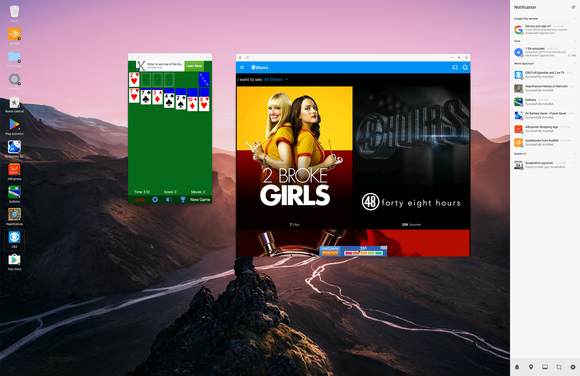
The best: Remix OS
Remix OS
is my top choice because it’s clearly the had considerable development
work. It’s a full-blown desktop OS that’s based on Android. Everything
you need to be productive or entertained is there, with the Google Play
Store available and of course the ability to use Google Drive, Gmail,
Chrome, or any non-Google apps for productivity.
The developers have built a slide-out notification menu and
repurposed the software buttons without significantly changing the way
that Android works. I played Clash of Clans, solitaire, and fooled
around in Chrome while trying Remix OS out. It was quite stable and was
the first time I felt that Android had actual capabilities to move
beyond the smartphone or tablet.
It also may sound like a
small matter, but being able to tap into apps like Snapchat that are
currently mobile-only is an appealing part of the experience. It speaks
to how blending the mobile and desktop worlds can mean less time
shifting between devices (with more potential distractions, of course).
However, it’s the most complicated of these software
packages to set up. You need to disable Secure Boot and then choose
Remix from the boot menu in Windows—basically, you're dual-booting. If
you know your way around a PC well enough you’ll be fine, but if this
concept sounds foreign you’ll need to be willing to leap through several
hoops to learn what to do.
Remix is very stable and
runs Android Marshmallow, although I wouldn’t necessarily recommend
using it as your primary PC unless your computing needs are pretty
minimal. And unfortunately touch support didn’t work on my Surface Pro
4, unlike some of the other alternatives that I tried here. However, I
suspect that touch would work with one of the many supported devices. However, I came away impressed at what Jide,
the company behind it, has built here. It’s especially a great option
if you want to do some Android gaming, as it handled numerous titles
very well.
Bluestacks
Available for both Mac and Windows, Bluestacks
has a clear focus on gaming with several titles waiting for you to
download once you fire it up. You go through the typical Android setup
process, Lollipop style. The interface makes clever use of tabs so that
you can keep multiple apps running at once.

There are several
dedicated buttons along the side that emulate features you’d normally do
with a gesture or tap on a mobile device. You’ll find dedicated buttons
for uploading an APK, taking a picture, grabbing screenshots, and
shaking the device (handy for those games or apps where this performs
some type of action).
There is a large list of suggested games, while I was also
able to grab titles like Clash of Clans from the Play Store and get
going without a problem.
Installing other Android apps was handy, as it put favorites
like Google Keep just a click away on the desktop. Snapchat didn’t work
for me, however, giving me an error when I tried to sign in. I found
this to be the case with other apps as well, so your mileage may vary.
Another component of the platform is BlueStacks TV,
which allows you to stream some of your gaming action or view other
live streams that are powered by Twitch. While I’m not a huge fan of the
video game streaming phenomenon, this is as good a way as any to do it
if you want to watch some mobile games in action.
In all the capabilities are pretty impressive, but I did find the performance to be slow and buggy at times.
Amiduos
The Lollipop-powered Amiduos
puts a stock version of Android on your PC, sans the Google Play Store.
It comes preinstalled with Amazon Appstore and has all the sideloading
capabilities of Android so you can install an APK of the Play Store if
you want to get more Google-powered apps on your PC.
But I used this as an opportunity to check out the whole Amazon Underground
scene. You get a ton of paid apps for free, although you have to
download and update them through Amazon’s store instead of Google’s.
Amiduos also gives you have a more
traditional Android experience. I also found it to be the most
responsive version of Android to work with the touch screen on my
Surface. It’s still not as hyper responsive as something like a Pixel C
or an iPad, but it was neat that this experience could be hacked
together.
Otherwise, you’ll need to
rely on mouse clicks and drags to work through the interface, which is
pretty close to a stock build of Lollipop. It was a pretty solid setup
on my Surface Pro 4, though it did use enough processor power to keep
the fan running whenever it was on (I have 8GB of RAM and an i5
processor).
In all operation was smooth, however, and didn’t require a huge learning curve.
Andy
Andy has its merits,
but I took issue with some elements of the experience. The platform is
loaded with ads and tries to install a Chrome extension that changes
your default search page in Chrome. This happened even though I clicked
the box to decline this feature. Not cool.
It does handle much of Android well,
especially when playing Android games. The build is based on
Marshmallow, and it was quite responsive to touches on my Surface. The
stock build was easy to navigate, although you need to sideload the Play
Store as this also instead comes preinstalled with the Amazon Appstore.
It’s a pretty good option
for gaming and was rather easy to use. But keep an eye for all of those
unwanted “extras” that are baked in.
The future of Android
If nothing else, this exercise made me excited for what
it’ll be like to have Android apps on Chromebooks. There are already
some good apps and games
out there for those Chromebooks that are capable of running the Google
Play Store. You can peer down the road and see that Android can be
useful on a desktop, though it’s still going to take some work to make
it something that I’d want to use everyday.
There are a few requirements your smartphone has to satisfy in order to support VR content. It requires the gyroscope,
magnetometer, and accelerometer sensors to bring the virtual reality in
front of you. Here are a few methods which can help you know whether
your smartphone is VR compatible or not.
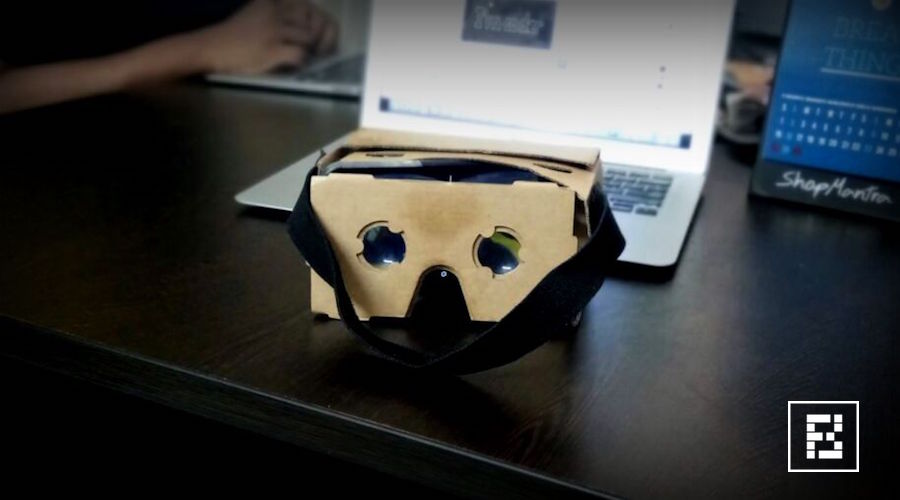
here are a lot of VR headsets out there. The Oculus Gear VR, Google
Daydream, HTC Vive, or the minimalistic Google Cardboard. These are the
popular ones but you can find a of number VR headsets on e-commerce
websites in different price segments.
There
is one thing that many people including me are curious about. Is my
smartphone VR compatible? Many of us don’t have much idea about how
these futuristic helmet work with our smartphone. The feature videos
from their makers mostly show a smartphone sliding inside headset and
one enters the world of virtual reality. So, in this article, there are a
few methods which you can use to check if your smartphone is compatible
with VR headsets or not.
What are the requirements?
For your smartphone to be VR compatible, your device should have the following sensors:
Gyroscope & Accelerometer
The
task of the accelerometer sensor is to detect the linear orientation of
your smartphone. For instance, when you move your smartphone from
portrait to landscape mode the screen rotates because the accelerometer
sensor comes at work.
The Gyroscope sensor is used to check the
tilt or twist movements of your smartphone. For example, if you place
your phone on a table and rotate it horizontally then it’s the gyro
sensor which detects the change in its orientation. The accelerometer
sensor can’t do this, it can only detect linear changes in the
orientation.
The gyro sensor is a must for your smartphone to be
compatible with a VR headset. The accelerometer sensor is generally
available in almost all the smartphones out there.
Magnetometer
This
is also known as compass sensor. It is used to know the direction of
the phone with respect to earth’s magnetic field. It helps your phone
decide which direction is North.
Method 1: Use VR-checking apps on Play Store
There
are a bunch of apps available on the Google Play Store which can help
you get the answer for the question — Does my smartphone support VR?
These
apps check whether your smartphone has the gyroscope and magnetometer
sensors. You can try these apps on Google Play store to check whether
your smartphone supports VR.
EZE VR
With a single tap, this app can detect whether your smartphone has
the required sensors. You need to tap Check and it will be a matter of
seconds for the EZE VR to tell if your device supports VR.
VR Checker

Unlike, EZE VR, the VR Checker
doesn’t require even a single tap. It is able to tell whether your
smartphone is VR compatible, displays other information like device
name, screen resolution, screen size, etc. It tells you whether your
device is Optimum, Compatible, or Incompatible for VR headsets.
Method 2: Using the YouTube app
The app tells you that you can use your smartphone to watch VR content. There is a simple method you can try.
- Update the YouTube app on your smartphone to the latest version.
- In your YouTube app, open a 360-degree video. You can also go to the 360-degree videos channel to find some amazing content.
- Go full-screen and put your phone in landscape mode.
- Tap the button shaped like Google Cardboard logo.
- Your screen will divide into two parts showing the same video.
- Try
to tilt and rotate your smartphone and check if the video also rotates.
If it does, then congrats, your smartphone can play VR.
Important: Without the gyro sensor, you will be abe to play the 360-degree videos but you won’t be able to move in the video.
Method 3: Google Cardboard App
Yes, you want a case on it
The Galaxy S7 is a
beauty. But all that glass and metal isn't designed for the rigors of
real life. Juggling groceries, kids, wallets, and just the occasional
bout of slippery fingers are enough to send your phone flying at any
moment.
You need a case, but deciding whether to enclose your
phone inside of a mini tank or a svelte glove is a very personal choice.
Wallet cases are also becoming popular, giving you one less thing to
carry around.
We've hauled in an extensive selection of some of
the best cases out there and checked them out in order to offer some
recommendations. No matter your preference, there's a Galaxy S7 case out
there for you.
Samsung LED wallet cover
I used this roundup as
an opportunity to try out this whole “wallet case” thing. It’s extremely
popular in Europe, as just about every other case I saw during a recent
trip was a wallet case. I’m seeing it catch on more here, and the
Samsung option is a very good one.
You should probably stick to
two cards in the flip-out cover (three will work, but it’s a squeeze).
But if that’s all you need for where you’re headed, it’ll definitely
free you from the need to also take a wallet. The LED lights are nice to
have, as they display the time, notify you of a missed call or text,
and show the battery charge percentage. However, you have to live with
the extra bulge from the case and constantly flipping it open and closed
every time you want to use your phone.
Recommanded : If you bring the Samsung Note7 on a plane, you could be arrested
![[ Plzhow ] Written and illustrated explanations](https://blogger.googleusercontent.com/img/b/R29vZ2xl/AVvXsEi0wb8SWgzkXTHmz2gI0D9wCA-XZK1GxFwT6EzfZ4IK3a2FV7eeIugnYcjwxYt4T6XtGc9mp52i63BfQjK94ow8tti1VyCEMMjBbYr8JZDgz8AUdopwlkfUDU1Ln9jQKAOSgf6qXxMNWNo/s1600/ff.png)