Showing posts with label Phones. Show all posts

How to free up space with storage tools in Android 7.1

Squeezing out enough storage space is one of the ever-present struggles of smartphone life. Android 7.1 brings some integrated tools to handle this all in one spot. To check out what’s here, go to Settings > Storage.As with previous versions of Android, you’ll see a breakdown of storage used by category.


However, check out a new tool by selecting Manage Storage at the top of the list. You’ll see an option for Smart Storage, which when toggled on will automatically remove backed up photos and videos when your phone's storage is almost full. If you have a Pixel (the first phone with Android 7.1), you get free storage at full resolution. 


Then, if you select Free up now you get more specific options for removing items. Since these items look for apps or photos that haven't been used in a long time, you may not see a ton of suggestions right away, especially if you have a new Pixel or just reset your device with Android 7.1
Finally, you can get more specific details about which apps and other elements of your phone are the main storage culprits. 


From the shared storage menu you can touch on any of the categories, like apps, images, or videos. This will let you know what’s using up the most room.
Also, touch the overflow menu and go directly to Free up space if you know you want to start right away on some purging.

How To Check If Your Smartphone Is VR Compatible?


There are a few requirements your smartphone has to satisfy in order to support VR content. It requires the gyroscope, magnetometer, and accelerometer sensors to bring the virtual reality in front of you. Here are a few methods which can help you know whether your smartphone is VR compatible or not.

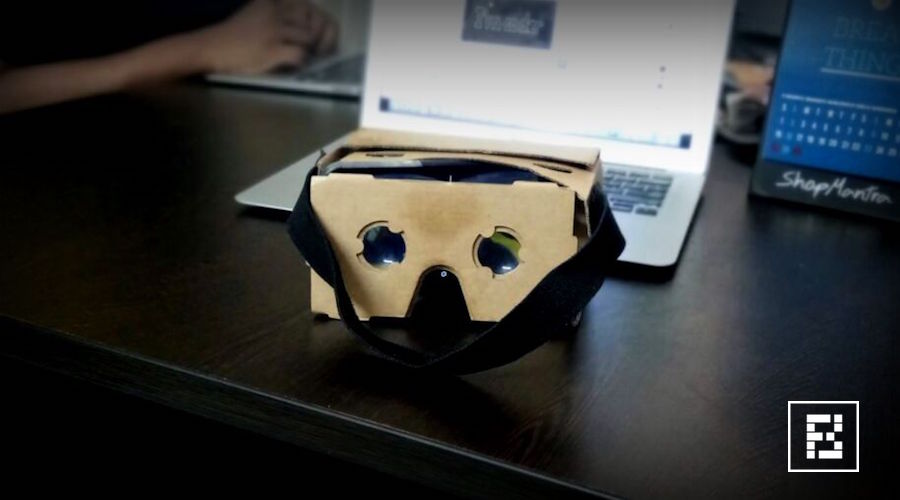
here are a lot of VR headsets out there. The Oculus Gear VR, Google Daydream, HTC Vive, or the minimalistic Google Cardboard. These are the popular ones but you can find a of number VR headsets on e-commerce websites in different price segments.

There is one thing that many people including me are curious about. Is my smartphone VR compatible? Many of us don’t have much idea about how these futuristic helmet work with our smartphone. The feature videos from their makers mostly show a smartphone sliding inside headset and one enters the world of virtual reality. So, in this article, there are a few methods which you can use to check if your smartphone is compatible with VR headsets or not.

What are the requirements?

For your smartphone to be VR compatible, your device should have the following sensors:

Gyroscope & Accelerometer

The task of the accelerometer sensor is to detect the linear orientation of your smartphone. For instance, when you move your smartphone from portrait to landscape mode the screen rotates because the accelerometer sensor comes at work.
The Gyroscope sensor is used to check the tilt or twist movements of your smartphone. For example, if you place your phone on a table and rotate it horizontally then it’s the gyro sensor which detects the change in its orientation. The accelerometer sensor can’t do this, it can only detect linear changes in the orientation.
The gyro sensor is a must for your smartphone to be compatible with a VR headset. The accelerometer sensor is generally available in almost all the smartphones out there.

Magnetometer

This is also known as compass sensor. It is used to know the direction of the phone with respect to earth’s magnetic field. It helps your phone decide which direction is North.

Method 1: Use VR-checking apps on Play Store

There are a bunch of apps available on the Google Play Store which can help you get the answer for the question — Does my smartphone support VR?
These apps check whether your smartphone has the gyroscope and magnetometer sensors. You can try these apps on Google Play store to check whether your smartphone supports VR.

EZE VR


With a single tap, this app can detect whether your smartphone has the required sensors. You need to tap Check and it will be a matter of seconds for the EZE VR to tell if your device supports VR.

VR Checker


Unlike, EZE VR, the VR Checker doesn’t require even a single tap. It is able to tell whether your smartphone is VR compatible, displays other information like device name, screen resolution, screen size, etc. It tells you whether your device is Optimum, Compatible, or Incompatible for VR headsets.

Method 2: Using the YouTube app

The app tells you that you can use your smartphone to watch VR content. There is a simple method you can try.
  1. Update the YouTube app on your smartphone to the latest version.
  2. In your YouTube app, open a 360-degree video. You can also go to the 360-degree videos channel to find some amazing content.
  3. Go full-screen and put your phone in landscape mode.
  4. Tap the button shaped like Google Cardboard logo.
  5. Your screen will divide into two parts showing the same video.
  6. Try to tilt and rotate your smartphone and check if the video also rotates. If it does, then congrats, your smartphone can play VR.
Important: Without the gyro sensor, you will be abe to play the 360-degree videos but you won’t be able to move in the video.

Method 3: Google Cardboard App

The best cases for the Galaxy S7


Yes, you want a case on it


The Galaxy S7 is a beauty. But all that glass and metal isn't designed for the rigors of real life. Juggling groceries, kids, wallets, and just the occasional bout of slippery fingers are enough to send your phone flying at any moment.
You need a case, but deciding whether to enclose your phone inside of a mini tank or a svelte glove is a very personal choice. Wallet cases are also becoming popular, giving you one less thing to carry around.
We've hauled in an extensive selection of some of the best cases out there and checked them out in order to offer some recommendations. No matter your preference, there's a Galaxy S7 case out there for you.


Samsung LED wallet cover


I used this roundup as an opportunity to try out this whole “wallet case” thing. It’s extremely popular in Europe, as just about every other case I saw during a recent trip was a wallet case. I’m seeing it catch on more here, and the Samsung option is a very good one. 
You should probably stick to two cards in the flip-out cover (three will work, but it’s a squeeze). But if that’s all you need for where you’re headed, it’ll definitely free you from the need to also take a wallet. The LED lights are nice to have, as they display the time, notify you of a missed call or text, and show the battery charge percentage. However, you have to live with the extra bulge from the case and constantly flipping it open and closed every time you want to use your phone.

Recommanded :  If you bring the Samsung Note7 on a plane, you could be arrested

Huawei Mate 9 to Come With Dual-Camera Setup and Powerful Battery


Huawei is working on an exciting new smartphone, the Mate 9. Rumors on the upcoming smartphone continue to surface online, the latest regard the dual-camera setup on the smartphone and the battery capacity.


A leakster on Weibo revealed that the phone might be coming with 20MP and 12MP rear cameras manufactured by Leica. This is not the first smartphone that Huawei equipped with Leica dual-camera setup, Huawei P9 also came with rear cameras manufactured by the German optics company.
The leak spotted by MySmartPrice also shows that the battery capacity could reach 3,000mAh with a SuperCharge feature that would allow the phone to charge to 50% capacity in just five minutes. This means that the smartphone could potentially be charged to 100% in just a few minutes.
Huawei Mate 9 might incorporate the latest Kirin 960 chipset
Other rumors regarding the smartphone show that the Mate 9 might come with a 5.9-inch display with 1080 x 1920 pixel resolution and an 8MP front camera for snapping selfies and conducting video calls. The smartphone might also come with an octa-core Kirin 960 chipset, which could be announced later this month. The chipset uses the 16nm process and might contain Cortex-A73 cores.
In addition, the Mate 9 might be offered in three variants, depending on RAM capacity and internal storage. One variant will come with 4GB of RAM and 64GB of internal storage and it will carry a price tag of about $480. The second version might have 4GB of RAM and 128GB of local storage with a price tag $585. The premium model will have 6GB of RAM and 256GB of internal memory for the price of $705.
Of course, these specs aren’t final until the company actually announces the smartphone, which might happen on November 3. A recent report showed that the company started sending invites for an event scheduled on that day, although the name Mate 9 isn’t specified on the invite.

How To Maximise Your Smartphone’s Battery Life


Discharged batteries are one of the many modern day miseries in our digital lives. However, by following some simple steps and taking a little bit of extra care, you can extend and maximise your phone’s battery life. These tips include avoiding complete discharging of battery and uninstalling the power-consuming applications. 


s all leading smartphone makers are striving to make their devices thinner and lighter, the users are not getting expected improvements in the battery life. The average battery life of a charged device that’s moderately used is about a day. As removable batteries are becoming rarer, people are extra cautious about them.
But, why does your smartphone battery keeps dying so fast? The answer to this question revolves around multiple factors that you must know to take care of your battery. Apart from heavy applications that love to suck the battery juice, temperature extremes also act as a major cause of your battery’s unfortunate death.

Tips to maximise your phone’s battery life

Just like the laptop battery myths, there are several wrong theories that one needs to discard. So, here are some facts and tips, based on science, that one should keep in mind to maximise the life of your smartphone battery —
  1. Avoid extreme heat or cold: You might be knowing that batteries hate high temperature and they start to fail. The upper limit of a smartphone or laptop battery is about 70°C to 90°C. But, you should avoid exposing your battery to such high temperature. All parts of your smartphone–processor, screen, different chips–produce heat. Coupled with the environment’s temperature, these factors become the number one enemy of your battery. Few of you might be knowing that smartphones also hate extreme low temperatures. So, avoid leaving your smartphone exposed to low temperature for a long period.
  2. Avoid full discharges: Modern batteries, which are mostly Lithium Ion batteries, have no memory effect. So, you should avoid discharging them completely. When battery’s charge gets too low, they get unstable and dangerous to charge. You should discharge the battery to 35-75% before charging it again. So, as a common practice, try to charge your battery as soon as it hits 30% mark and avoid discharging it completely.
  3. Store batteries at 50% charge: You shouldn’t leave your smartphone battery completely discharged for a long period of time. If you leave a completely discharged battery for weeks, it may not hold the charge for a long time. The best practice to extend your phone’s battery life is storing it at 50% charge. This rule applies to both batteries in devices and the spare batteries.
  4. Don’t keep it plugged in for too long: This is a debatable issue and we have covered laptop’s case in the past. While your modern smartphone battery doesn’t consume energy once it’s fully charged, it might get heated up in the process. So, the general opinion is that one should avoid leaving the smartphone plugged in for too long.

Some other tips to extend smartphone’s battery life

Apart from the overheating and charging issues, you can also maximise your phone’s battery life by killing the unnecessary activities that drain your battery. Here are some simple tips:
  • Turn on the automatic brightness adjustment feature
  • Take a look at your phone’s power usage pattern
  • Turn off Wi-Fi, Bluetooth, and locations when not in use
  • Use widgets to easily toggle the above-mentioned settings
  • Disable continuous sync feature in apps
  • Use task manager to kill the apps
  • Disable/delete the unnecessary apps
  • Use apps to kill entire data connection when not in use
  • Disable animated wallpapers and widgets
Did you find this article helpful? Don’t forget to drop your feedback in the comments section below.
Recommanded : Should I Keep My Laptop Battery Plugged In All The Time?

Moto G4 Play review: It's tagline should read 'Good Enough'


The thought of a modern smartphone, capable of putting the world’s knowledge in the palm of your hand, priced at only $150 is kind of ridiculous, isn’t it?
Motorola’s latest entry-level model is the Moto G4 Play, a $150 device that’s a cheaper, less-well-equipped device when compared to the other two devices in the “G” line: the G4 and G4 Plus.
Just how much phone do you get in a phone that costs $10 less than Apple’s wireless AirPods? Let’s take a look.


Fast enough for basic tasks, not for gaming

The Moto G4 Play ships with Android 6.0.1, is powered by Qualcomm’s Snapdragon 410 processor with 2 GB of memory. Its 2,800 milliamp-hour battery is removable, while its standard 16 GB of storage is expandable up to 128 GB through microSD support.

Translation: The G4 Play isn’t a speed demon, but thanks its 5-inch 720p display and low-end processor, its battery life is stellar.
Battery life in real world use was enough to get me through a 14 hour day, full of email, Facebook, random camera use, and Slack conversations.
During normal tasks where you’re not asking a lot of the processor, such as using Gmail, the phone shows almost no signs of slow performance. However, while racing around the track in Asphalt 8 is possible, you'll suffer some stutter and choppiness to the gameplay.
As is the case with the rest of Motorola’s smartphone lineup (not tied to the Droid branding), the overall Android experience is designed to look and feel more or less stock, with a few custom tweaks here and there. For example, you can launch the camera at any time by pressing the power button twice in quick succession.

Excessive apps and carrier bloatware are nonexistent on the G4 Play, unless you opt for the Amazon version (more on that below).

The camera is just okay


Almost every photo I capture with the G4 Play’s 8 megapixel camera has a grainy look to it. The photo above, for example, looks fine when viewing it on the phone, but view it on a computer and the graininess shows up.
Abnormalities are most apparent around my son’s face, just below his chin. Color reproduction in this particular shot is decent, but the sky is completely blown out, with some of that carrying over to the roof of the school just below it.


On occasion, however, I would get a clean shot with balanced exposure and color replication. Even when viewing the photo of my dog on my computer’s display, I was impressed with the shot.
In other words, the G4 Play’s camera isn’t going to wow you. Often times, you'll will wish you had a better camera, but it does a good enough job for sharing on Instagram or Snapchat where the quality of a photo doesn’t matter as much as the subject matter.

Same phone, $50 cheaper through Amazon

The G4 Play is one of three devices currently available through Amazon’s Prime Exclusive Phone program. In exchange for a discount on the phone, Amazon preloads its suite of apps and displays ads on the lock screen of the phone. The standard Moto G4 is also part of Amazon’s program.
The G4 Play I used for my review wasn’t from Amazon, but I have used the $50 Blu R1 Amazon Prime Phone. It had a handful of Amazon apps preinstalled, including Prime Video, IMDB, Amazon Photos, the Kindle app, and the Amazon Shopping app (naturally!), and a few additional apps.
Amazon’s ads on participating phones aren’t intrusive, displaying on the lock screen just below pending notifications, or occasionally taking over the lock screen with a full-screen ad when you don’t have any waiting alerts. Although, the ads don’t appear to be as targeted as the ads I’ve seen on my Kindle Paperwhite.
If I was in the market for the G4 Play, I would have zero hesitation in going with the Amazon Prime model and saving $50.

A definite buy for those on a budget

Perhaps a better way to explain the Moto G4 Play is to call it an overachieving mediocre phone. I know, it makes no sense, but when you look at its benchmarks, the scores are really low. Yet, daily use doesn’t suffer in the same manner the HTC Desire 530 did, which scored just below the G4 Play.
I didn’t recommend the Desire 530, however I have no problem recommending the Moto G4 Play to those who are looking for an unlocked phone on tight budget.
The Moto G4 Play will get the job done, so long as its duties are limited to light computing and the occasional gaming session.