Squeezing out enough storage space is one of the ever-present struggles of smartphone life. Android 7.1 brings some integrated tools to handle this all in one spot. To check out what’s here, go to Settings > Storage.As with previous versions of Android, you’ll see a breakdown of storage used by category.
However, check out a new tool by selecting Manage Storage
at the top of the list. You’ll see an option for Smart Storage, which
when toggled on will automatically remove backed up photos and videos
when your phone's storage is almost full. If you have a Pixel (the first phone with Android 7.1), you get free storage at full resolution.
Then, if you select Free up now
you get more specific options for removing items. Since these items
look for apps or photos that haven't been used in a long time, you may
not see a ton of suggestions right away, especially if you have a new
Pixel or just reset your device with Android 7.1. Finally, you can get more specific details about which apps and other elements of your phone are the main storage culprits.
From the shared storage menu you
can touch on any of the categories, like apps, images, or videos. This
will let you know what’s using up the most room. Also, touch the overflow menu and go directly to Free up space if you know you want to start right away on some purging.
At the end of every day do you still dutifully close every file and
program window before shutting down your PC? That’s the standard way to
handle things, but for quite a few versions of Windows, Microsoft also
offered the ability to use Sleep and Hibernate modes instead of just a
regular shut down.
In Windows 10, however, Microsoft decided not to include hibernate with the rest of the shut down options under Start > Power by default. The good news is it’s easy to put the option back.
Why hibernate?
Hibernation is kind of a mix between a traditional shut down and sleep
mode primarily designed for laptops. When you tell your PC to hibernate,
it saves the current state of your PC—open programs and documents—to
your hard disk and then turns off your PC. Then when it’s time to start
it up again all your previous work is ready and waiting for you.
Unlike sleep mode, it doesn’t use any power, but it does take longer to start up again.
Setting it up
To add Hibernate to Start > Power, click on the Cortana/search box in the taskbar and type power options. The first result you see should be a Control Panel setting of the same name. Click on that.
Once the Control Panel opens, select Choose what the power buttons do from the left-hand navigation panel.
Then at the top of the next screen click on the link that says Change settings that are currently unavailable.
Now scroll down to the bottom and under Shutdown settings click the checkbox next to Hibernate. Next, click Save changes and you’re done.
Go to Start > Power and you should now see Hibernate among all the rest of the shut-down options.
There are a few requirements your smartphone has to satisfy in order to support VR content. It requires the gyroscope,
magnetometer, and accelerometer sensors to bring the virtual reality in
front of you. Here are a few methods which can help you know whether
your smartphone is VR compatible or not. here are a lot of VR headsets out there. The Oculus Gear VR, Google
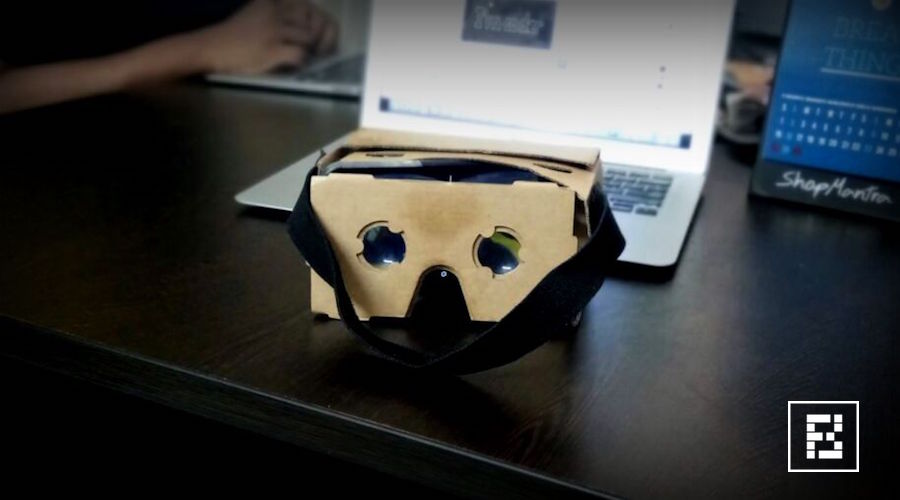
Daydream, HTC Vive, or the minimalistic Google Cardboard. These are the
popular ones but you can find a of number VR headsets on e-commerce
websites in different price segments.
There
is one thing that many people including me are curious about. Is my
smartphone VR compatible? Many of us don’t have much idea about how
these futuristic helmet work with our smartphone. The feature videos
from their makers mostly show a smartphone sliding inside headset and
one enters the world of virtual reality. So, in this article, there are a
few methods which you can use to check if your smartphone is compatible
with VR headsets or not.
What are the requirements?
For your smartphone to be VR compatible, your device should have the following sensors:
Gyroscope & Accelerometer
The
task of the accelerometer sensor is to detect the linear orientation of
your smartphone. For instance, when you move your smartphone from
portrait to landscape mode the screen rotates because the accelerometer
sensor comes at work. The Gyroscope sensor is used to check the
tilt or twist movements of your smartphone. For example, if you place
your phone on a table and rotate it horizontally then it’s the gyro
sensor which detects the change in its orientation. The accelerometer
sensor can’t do this, it can only detect linear changes in the
orientation. The gyro sensor is a must for your smartphone to be
compatible with a VR headset. The accelerometer sensor is generally
available in almost all the smartphones out there.
Magnetometer
This
is also known as compass sensor. It is used to know the direction of
the phone with respect to earth’s magnetic field. It helps your phone
decide which direction is North.
Method 1: Use VR-checking apps on Play Store
There
are a bunch of apps available on the Google Play Store which can help
you get the answer for the question — Does my smartphone support VR? These
apps check whether your smartphone has the gyroscope and magnetometer
sensors. You can try these apps on Google Play store to check whether
your smartphone supports VR.
EZE VR
With a single tap, this app can detect whether your smartphone has
the required sensors. You need to tap Check and it will be a matter of
seconds for the EZE VR to tell if your device supports VR.
VR Checker
Unlike, EZE VR, the VR Checker
doesn’t require even a single tap. It is able to tell whether your
smartphone is VR compatible, displays other information like device
name, screen resolution, screen size, etc. It tells you whether your
device is Optimum, Compatible, or Incompatible for VR headsets.
Method 2: Using the YouTube app
The app tells you that you can use your smartphone to watch VR content. There is a simple method you can try.
Update the YouTube app on your smartphone to the latest version.
In your YouTube app, open a 360-degree video. You can also go to the 360-degree videos channel to find some amazing content.
Go full-screen and put your phone in landscape mode.
Tap the button shaped like Google Cardboard logo.
Your screen will divide into two parts showing the same video.
Try
to tilt and rotate your smartphone and check if the video also rotates.
If it does, then congrats, your smartphone can play VR.
Important: Without the gyro sensor, you will be abe to play the 360-degree videos but you won’t be able to move in the video.
Many Windows 7 users are faced with an unpleasant glitch that causes the disappearance of the language bar from the taskbar, and the standard tools of the system fail to restore the layout indicator. In this case, a minor intervention into the registry can help. See the video in youtube
![[ Plzhow ] Written and illustrated explanations](https://blogger.googleusercontent.com/img/b/R29vZ2xl/AVvXsEi0wb8SWgzkXTHmz2gI0D9wCA-XZK1GxFwT6EzfZ4IK3a2FV7eeIugnYcjwxYt4T6XtGc9mp52i63BfQjK94ow8tti1VyCEMMjBbYr8JZDgz8AUdopwlkfUDU1Ln9jQKAOSgf6qXxMNWNo/s1600/ff.png)